Canva Tips and a BIG Announcement
“Live as if you were to die tomorrow. Learn as if you were to live forever.”
― Mahatma Gandhi
ANNOUNCEMENT:

Our new course has launched! If you are a teacher or know a teacher, share the news! This 1 week course will give a new teacher, substitute or long time pro some new tips, tricks and resources for the classroom. Share the news! We are running a special so enroll today!

*Disclosure: I only recommend products I would use myself and all opinions expressed here are our own. This post may contain affiliate links that at no additional cost to you, I may earn a small commission.
Canva Tips and Tricks to Work Smarter not Harder
1. Is Canva Pro Worth It!?
This one is easy....ABSOLUTELY!! Let's compare:
Canva Base Version
Cost - Free and you do get a LOT of great features for free.
Best Features
Great to test drive the product.
Templates to get started quickly including social media posts, ads, everything a small business might need.
Photos and graphics to use in your designs.
Collaborate - You can work on design with others and share them out.
Canva Pro (Teachers get many of these features for FREE)
Cost - $119.99 per year.
Best Features
More design and templates available.
Additional assets such as audio and video available.
Background remover (Game changer! Keep reading!)
Branding ability to keep your design consistent (Keep reading!)
Social Media schedule/posting
Magic Resize to get the most from your designs.
If you look at all there is to offer in the pro version, you would save not having to get some of your designs done outside of your org. You would also save on social posting effort and cost. Thumbnails, gifs and social posts are so easy with Canva Pro. Teachers can use pre-made templates for worksheets and handouts. Students can do projects and presentations in Canva.
Small business or a teacher? You need Canva Pro.
(FYI I'm not currently a Canva affiliate, I just love the product.)
2. Branding with Canva Pro
Canva pro allows you to insert your brand colors, logo and fonts and save them. You can have multiple brand if you need to or if you manage other businesses within your Canva instance. Branding can then carry into your design and templates allowing you to be consistent and promote your brand in everything you create.
Brand Colors - You should get a set of 3-5 colors that represent your brand. My favorite tool to determine a good set of brand colors is Coolors.co. That is what we use for our clients and I demo how to use it in the video. It is work paying for in order to save your brand kits and take full advantage of their tools. Take some time to choose some good looking brand colors. Canva also has a tool for this as well but I prefer Coolors.
Logo- Upload your logo into your brand kit or use Canva to create a logo. Note that you cannot use Canva to create a logo with elements and then trademark that logo. Check out the rules before you get too far.
Fonts - Fonts are an important representation of your company. Take time to choose 3 and put them into Canva. Everything will be consistent and look amazing as you create new designs. Not need to remember your fonts or search for them. They will be right in your brand kit.
Bonus! Templates - note when you go to create presentations, you can use templates that can utilize your brand. All of your presentations will look amazing and represent YOU!
3. 3. Canva Background Remover: Awesome!
Canva's background remover is part of Canva Pro and alone worth the cost. You can remove backgrounds from any image including stock and your own photos. Why would you want to do this?
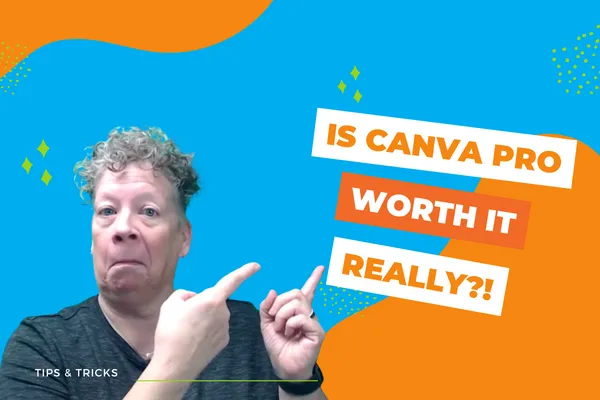
Thumbnails - Who knows if this style will remain but thumbnails for video have LOTS of images with the background removed. Now you can do it in a click or two. That's how I made this thumbnail.

Website Pics - You can spice up your website images and profile pics using remove background and then replace with a motion background or more interesting background.


BONUS TIP - You can remove backgrounds on video too! It works so well. You can make motion gifs and videos to insert into other images or videos. Your imagination is the only limiting factor. One click and you are on your way.

The Verdict:
Check out the free version of Canva and just create to get used to the product. As soon as you're ready to make some ads, web graphics, social posts, presentation, show off that brand then upgrade to Canva Pro. You will not regret it.